App guide
Cuiman launches Eozilla App to browse processes, edit inputs, submit jobs, and inspect their status and results. The App works in a browser or inside Jupyter.
Open in a browser
Follow the local service setup, then run:
cuiman show-app
Keep the terminal running while using the App; press Ctrl+C to stop its server.
The App uses the saved Cuiman service configuration. For a service requiring
interactive sign-in, use cuiman login first; see
Authentication.
Choose a process and submit a job
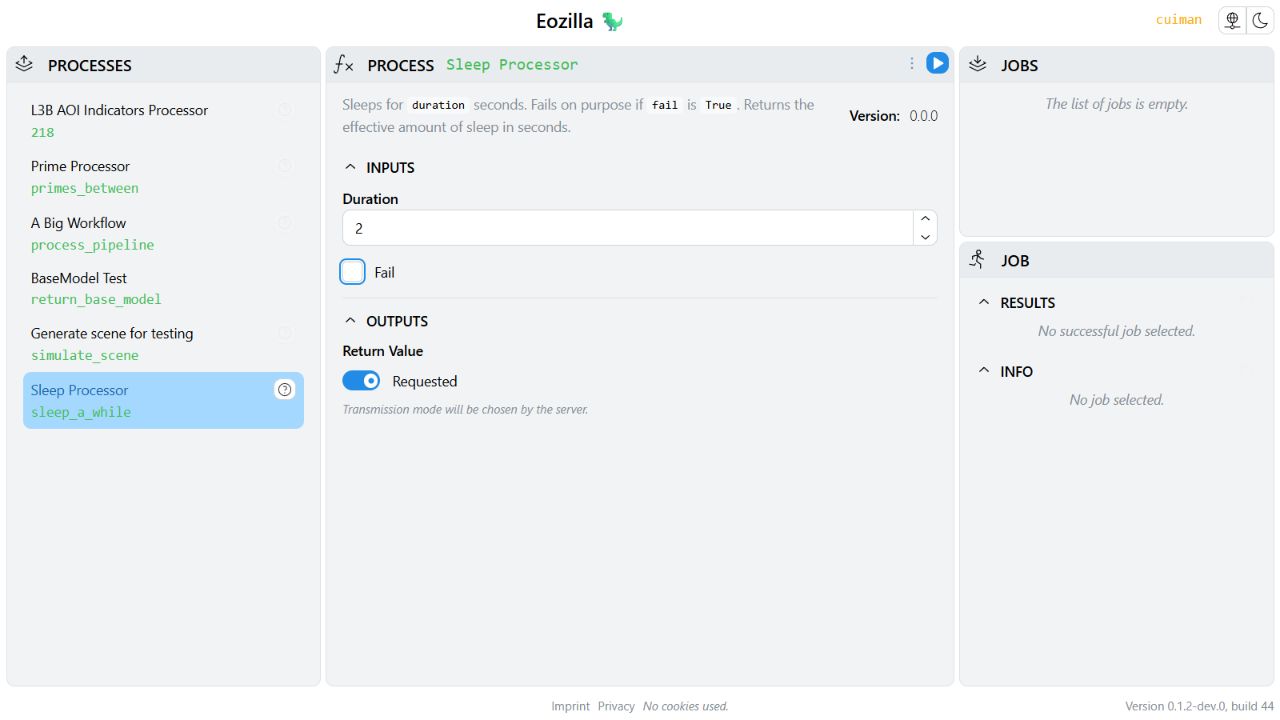
Choose Sleep Processor (sleep_a_while) from the process list. Set
duration to 2, leave fail disabled, and execute the request. Follow
the new job's status in the jobs view; once successful, inspect its result,
the effective sleep duration. Enable fail for a separate execution if you
want to explore error details.
For a dataset example, choose Generate scene for testing (simulate_scene).
Use the small inputs from the result opener guide.
The result is a reference to a Zarr dataset; that guide explains how to open it
from Python. Available processes and fields depend on your service.
Launch from Python
The reusable App example creates a client for the local service and returns both handles:
from typing import Literal

from cuiman import Client
from cuiman.app import App


def open_app(display: Literal["browser", "notebook"] = "browser") -> tuple[Client, App]:
    """Open the App and return the client and server handles for later cleanup."""
    client = Client(api_url="http://127.0.0.1:8008", auth={"auth_type": "none"})
    try:
        app = client.show_app(display=display, height=640)
    except Exception:
        client.close()
        raise
    return client, app


client, app = open_app()
For another service, replace the explicit URL and authentication settings with
your configuration. Call client.login() before
show_app() if interactive authentication is needed.
From the repository root in pixi shell, the complete script keeps the App
running until Ctrl+C and then releases its resources:
python -m examples.guides.cuiman.app
Embed in Jupyter
As an alternative to the browser launch above, start a notebook session whose working directory is the repository root and run:
from cuiman import Client
from cuiman.app import App
from examples.guides.cuiman.app import close_app, open_app, set_duration

client, app = open_app(display="notebook")
Keep client and app for subsequent cells. client.show_app() also supports
display="auto", which embeds in a notebook and opens a browser otherwise.
For remote Jupyter deployments, see
notebook proxy configuration.
Update inputs from Python
After opening Sleep Processor in the App, update the same form from Python:
def set_duration(app: App, duration: float = 2) -> None:
    """Update the sleep form without replacing its other inputs or outputs."""
    request = app.get_process_request("sleep_a_while")
    if request is None:
        raise ValueError("Open the sleep_a_while process in the App first.")
    if request.inputs is None:
        request.inputs = {}
    request.inputs["duration"] = duration
    app.set_process_request("sleep_a_while", request)


set_duration(app, duration=5)
The helper preserves the request's other inputs and outputs. It updates the
form without submitting a job. You can also edit nested state directly using
app.process_requests.sleep_a_while.inputs.duration = 5.
Close the App
When finished with an App launched from Python or Jupyter:
def close_app(client: Client, app: App) -> None:
    """Stop the App server and close the client even if stopping fails."""
    try:
        app.serve_result.stop()
    finally:
        client.close()


close_app(client, app)
Closing the browser tab alone does not stop the Python server.
See the Eozilla App overview for architecture and
development documentation. The
original GUI notebook
remains available as a historical example. Its introductory show() and
show_jobs() descriptions refer to the legacy GUI; use show_app() with the
current client.